How to Create a Telegram Bot, Get Bot Token & Channel ID (Complete Guide)
Table of Contents
To send automated messages to a Telegram channel (for example via a WordPress plugin or admin panel), you need two essential values:
- Telegram Bot Token
- Telegram Channel ID
This guide walks you through the exact steps to obtain both — including the most reliable method to get the channel ID, which is often poorly documented.
Step 1: Create a Telegram Bot and Get the Bot Token
Telegram provides an official bot called BotFather that is used to create and manage bots.
Steps:
- Open Telegram
- Search for BotFather
- Start the chat
- Send the command:
/newbotYou will be prompted to:
- Enter a bot name (e.g. My Website Bot)
- Enter a username (must end with
bot, e.g.my_site_bot)
Once created, you will receive your bot token.
Example:
123456789:AAExampleToken123456789abcdefImportant: Store this token securely. It gives full control over your bot.
Step 2: Create or Select Your Telegram Channel
You need a Telegram channel where your bot will send messages.
To create one:
- Open Telegram
- Click New Message (this is usually icon with a pen – check up for mobile / desktop and down for web version) → New Channel
- Enter name and description
- Choose public or private
Step 3: Add the Bot as Administrator
This step is critical. Without admin permissions, your bot cannot send messages.
Steps:
- Open your channel
- Go to Channel Settings
- Select Administrators
- Click Add Admin
- Search for your bot (use the bot full name –
my_site_bot) - Grant permission: Post Messages
Step 4: How to Get Telegram Channel ID (Correct Method)
Telegram does not directly display the channel ID in its apps, but you can reliably obtain it using Telegram Web.
Method 1: Using Telegram Web (Recommended)
- Open Telegram Web:https://web.telegram.org/
- Log into your account
- Open your channel
- Look at the browser URL
You will see a URL like this:
https://web.telegram.org/a/#-1001234567890Your channel ID is:
-1001234567890Important:
- The
#symbol is not part of the channel ID - The ID usually starts with
-100
Method 2: Using Your Bot (Alternative)
You can also retrieve the channel ID via your bot:
- Post a message in your channel
- Open this URL in your browser (replace YOUR_TOKEN):
https://api.telegram.org/botYOUR_TOKEN/getUpdatesFind this section in the response:
"chat": {
  "id": -1001234567890,
  "title": "Your Channel Name",
  "type": "channel"
}
The value of
id is your channel ID.
Final Result: What You Need
After completing all steps, you will have:
- Bot Token → used for authentication
- Channel ID → used to target your channel
These values can now be entered into 0-day-analytics plugin or admin interface to enable automated Telegram messaging.
Set the Telegram in the plugin settings
That is 2 step process:
Step 1:
Telegram Bot
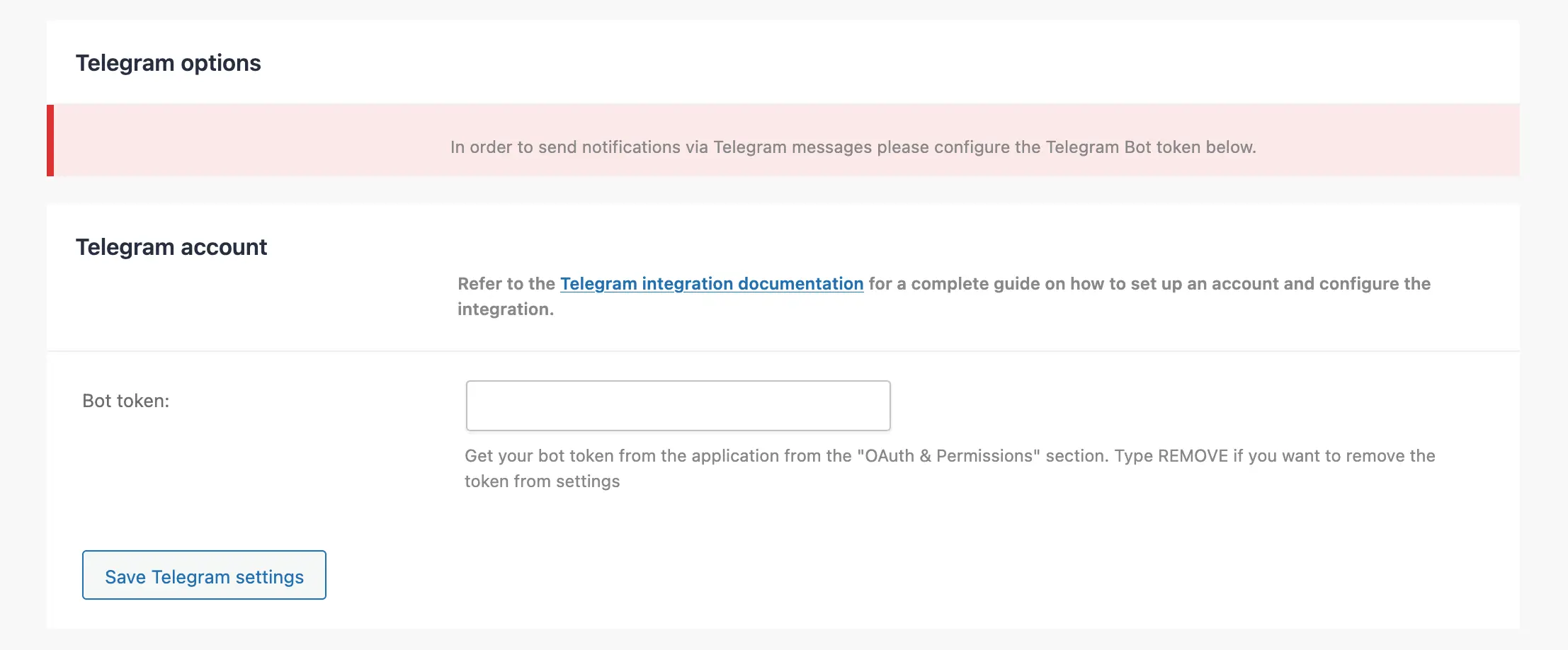
Go to plugin settings, navigate to Notification Option (right hand menu), and find the Telegram account section Telegram Account sub section. Add the bot Token in the “Bot token”: input and press the button Save Telegram settings button (below). Plugin will store the provided token info and will refresh the page.
Step 2:
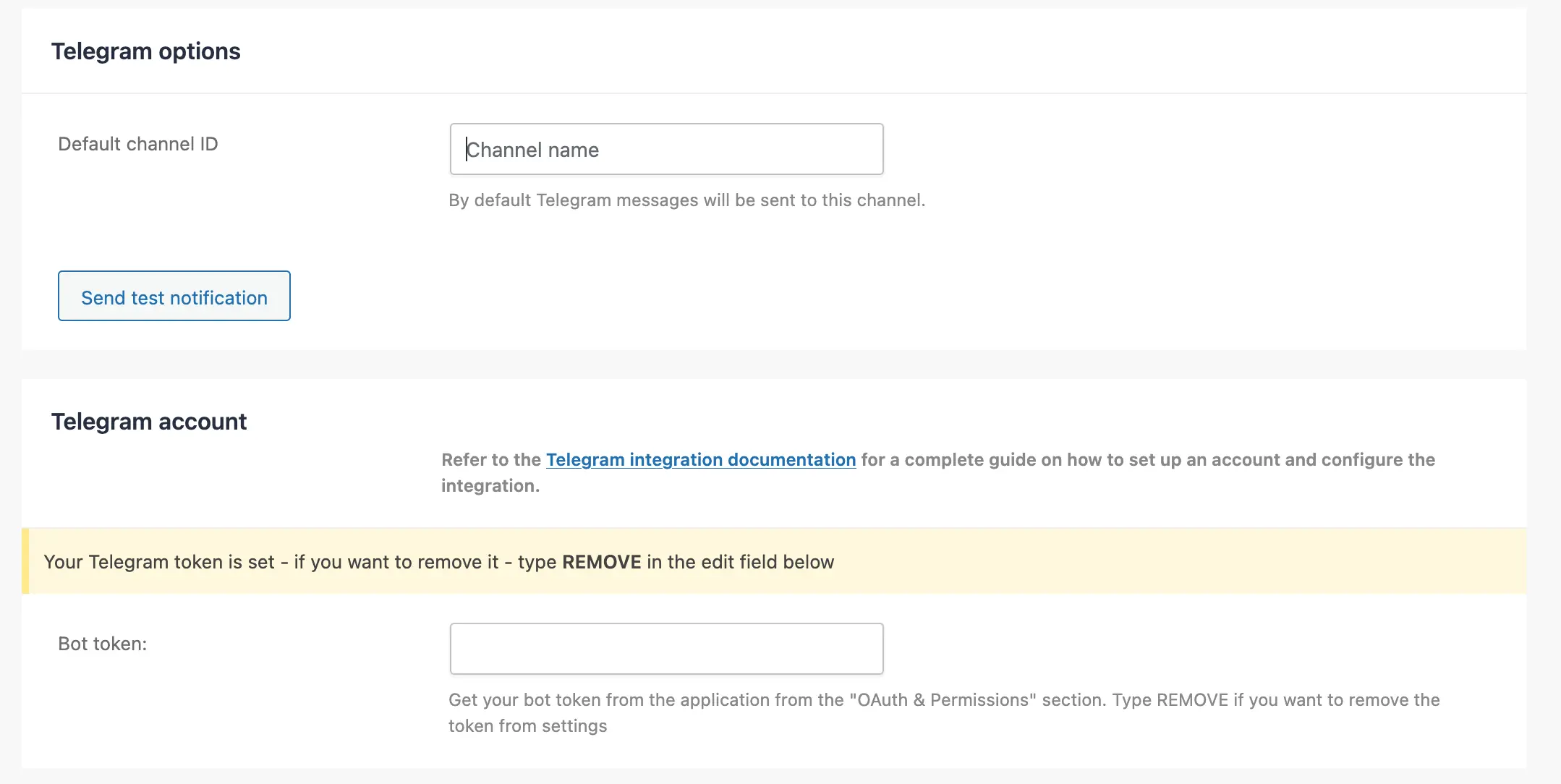
Now in the Telegram section now you will see another sub section Telegram options section with “Default channel ID” input.
Set the Telegram channel in the plugin
Put you channel id in there and then press the global “Save Changes” (don’t rush to press Send test notification before saving the changes (press “Save Changes” button first), as the plugin still don’t have your channel ID at this stage) button (you can find it either in down right corner or upper right corner of the settings window). The plugin will store the settings and refresh the page.
Test if everything is working – Now press the “Send test notification” button and check your channel, there must be new message from the bot.
Plugin will sent only fatal errors to this channel, and will add a recovery link to the message, so you can safely get access to your WordPress site and recover it from the error.
Remove the Telegram bot
Go to plugin settings, navigate to Notification Option (right hand menu), and find the Telegram account section Telegram Account sub section. In the “Bot token”: input, put the word “REMOVE”, and press the global “Save Changes” button (you can find it either in down right corner or upper right corner of the settings window). The plugin will store the settings and refresh the page.
Common Mistakes
- ❌ Bot not added as admin
- ❌ Copying
#as part of channel ID - ❌ Using incorrect or incomplete ID
- ❌ Not saving bot token securely
Security Best Practices
- Never expose your bot token publicly
- Regenerate token via BotFather if compromised
- Limit admin access in your channel
Conclusion
Creating a Telegram bot and connecting it to a channel is straightforward once you understand how to properly obtain both the bot token and channel ID.
Using Telegram Web to extract the channel ID is the most reliable approach, ensuring your integration works correctly in plugins, automation tools, or custom systems.
FAQ
What is a Telegram bot token?
A unique key that allows your system to control a Telegram bot.
Why does my channel ID start with -100?
This prefix indicates that the ID belongs to a Telegram channel.
Is the # symbol part of the channel ID?
No, it is only part of the URL structure and must be excluded.
Do I need admin rights for the bot?
Yes, otherwise the bot cannot post messages.
Is this setup free?
Yes, Telegram bots and channels are completely free to use.
Comments (0)
Join the conversation. to leave a comment.